Unfortunately EndNote 20 and any new versions moving forward, are no longer available for free for APU students and Faculty.
Options:
You could either pay for an EndNote license (currently EndNote 21) for $275, $150 for a student license) or switch over to another Citation Manager software like the free Zotero.
What about expired Endnote license? To upgrade from EndNote 20 to the new EndNote 21 license, you must do so from within your expired EndNote program in order to retrieve your My EndNote Library references.
For using Zotero, we have created a brief handout on How to Use Zotero.
Also, if needed, here are the steps to move records from My EndNote Library to Zotero here.
Associated note: you can link to APU's library holdings in Zotero by going to Edit, Preferences, then Advanced. Under "Open URL" select North America, then Azusa Pacific University.
Updated: May 13, 2024
If you are using EndNote for the first time, you probably have a new My EndNote Library with nothing in it. Let's find resources for your research to put into your library. There are multiple places to search, and this guide covers searching in several locations. This is a normal part of carrying out research.
The most important places to find resources for your research are:
Google Scholar
You may also find resources in Google Scholar (scholar.google.com). Google Scholar's website provides links to a wide array of materials, such as journal articles, book reviews, digitized books and more. Some of what you will find in Google Scholar are citations to works you will need to find elsewhere, such as books or journal articles that are available online only through a database, such as Academic Search Premier. There are, however, many full-text items that you can find in Google Scholar that can be download as PDF documents. This service it is particularly helpful for finding resources that would not likely appear in an online database, such as papers presented at conferences that were not otherwise published like this one. Helpful information on getting citations found in Google Scholar into EndNote is available here.
How to conduct research
Information on conducting research is available here. Steps 6 and 7 will be most helpful for this guide.
When you are in EndNote, it looks like you can click on a database, and perform a search from within EndNote. Some of the databases listed may be searched, like LISTA or PubMed, but most of the APU online databases cannot be accessed from within EndNote unless you are on campus. You will need to go to the library web site to search for books and articles, and go to Google Scholar to look for resources there. It is highly recommended that you do all your database searches with the APU databases and not try this within EndNote. Accessing these resources is described in the box to the left. "Performing Searches for Resources," for more information. To perform a search from within EndNote, follow these steps.
1. Click on "Tools" on the menu bar at the top of he EndNote screen.
2. Click on "Online Search." This will show you a list of databases that you can theoretically search from here, even though in most cases this will not work well..
3. Click on the database you want to search, in this case, PubMed.
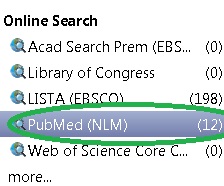
4. Enter your search criteria in the boxes to the right of the database list. As you can see, the options for searching are similar to searching for a book in the catalog or a journal article in the online databases. Once you have entered the search criteria, click "Search."
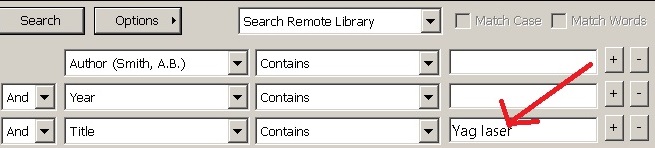
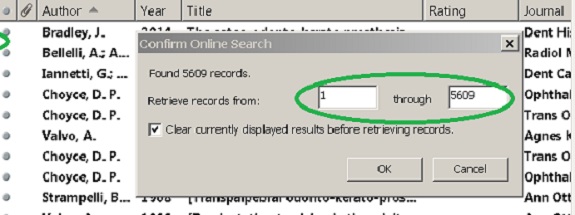
5. Accept, reject, or display results. Below is a picture of a successful search. It shows that the PubMed database has been chosen. This database was searched for articles that contain "Yag laser" in the title. When EndNote determines how many results were returned by this search, it gives you the opportunity to accept, reject, or limit the display of results.
If you click the "More" option in the database list, you will get a dropdown list of many databases. While many of them are unavailable within EndNote directly, the library catalogs for many large institutions, e.g., UCLA, can be searched in order to develop bibliography for your paper..
See the box to the left, "Performing Searches for Resources," for more information.
This LibGuide is not a tutorial on using the library. However, there are lots of aids to doing that, which may be found here.
